
Custody API local setup
1
Start dependencies
The Custody API requires PostgreSQL 16. Use Docker Compose from the repository root:
2
Configure environment
Copy the example environment file and adjust values:Key variables:
3
Run the API
http://localhost:8080/v1.Documentation preview
Prerequisites:
- Node.js version 19 or higher
- The
custody/docsdirectory
1
Install the Mintlify CLI
2
Preview locally
Navigate to your docs directory where your A local preview of your documentation will be available at
docs.json file is located, and run the following command:http://localhost:3000.Custom ports
By default, Mintlify uses port 3000. You can customize the port Mintlify runs on by using the--port flag. For example, to run Mintlify on port 3333, use this command:
Mintlify versions
Please note that each CLI release is associated with a specific version of Mintlify. If your local preview does not align with the production version, please update the CLI:Validating links
The CLI can assist with validating links in your documentation. To identify any broken links, use the following command:Deployment
If the deployment is successful, you should see the following: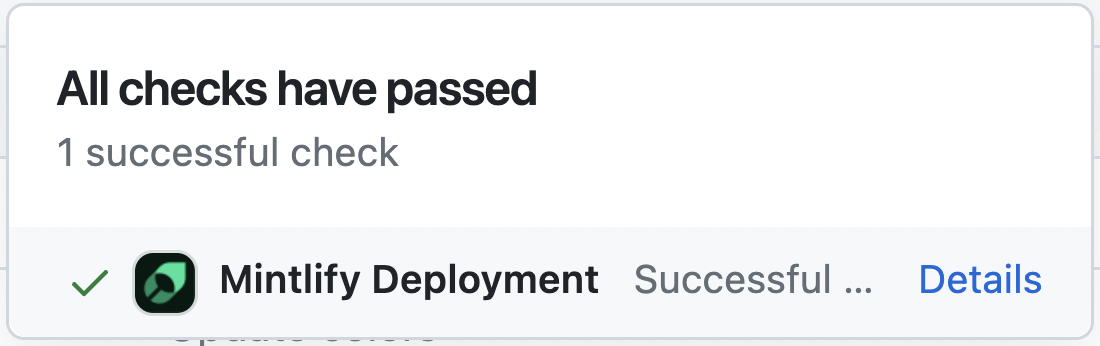
Code formatting
We suggest using extensions on your IDE to recognize and format MDX. If you’re a VSCode user, consider the MDX VSCode extension for syntax highlighting, and Prettier for code formatting.Troubleshooting
Error: Could not load the "sharp" module using the darwin-arm64 runtime
Error: Could not load the "sharp" module using the darwin-arm64 runtime
This may be due to an outdated version of node. Try the following:
- Remove the currently-installed version of the CLI:
npm remove -g mint - Upgrade to Node v19 or higher.
- Reinstall the CLI:
npm i -g mint
Issue: Encountering an unknown error
Issue: Encountering an unknown error
Solution: Go to the root of your device and delete the
~/.mintlify folder. Then run mint dev again.